Where Can I Find the Perfect Logo and Print for My Custom T-shirt Printing Project?
Do you feel lost trying to find the right design? Problem: The wrong design source ruins your quality and brand image. Agitation: This causes costly print errors and legal issues. Solution: Choose a design source that matches your brand's purpose.
You can find T-shirt designs from freelance platforms, stock art sites, or local designers, but the best source is one that aligns with your shirt's purpose (e.g., retail vs. promo) and provides print-ready vector files (SVG/EPS) with clear commercial rights and color specifications to ensure perfect execution.

When clients ask me where to find a logo, I tell them that they are not just looking for a file; they are looking for a brand decision. My time in the production world taught me that a poor design file is the number one reason a great idea turns into a bad shirt. You need to think about the story you want to tell. Are you aiming for speed and quantity, or uniqueness and deep meaning? I want to break down the process for you, so you can choose a source that results in a high-quality, lasting product that people actually want to wear.
How Can I Print an Image and Put It on a Shirt Successfully?
Ready to print but worried about the quality? Problem: Printing an image without the right file leads to blurry, low-quality results. Agitation: This wastes fabric and money. Solution: Always insist on professional, print-ready file formats.
You successfully print an image on a shirt by using high-resolution, print-ready files like vector graphics (.SVG or .EPS) for logos, or high-resolution flattened files (300 DPI PNG/TIFF) for detailed artwork, and you must choose the correct printing method that suits your file type and material.
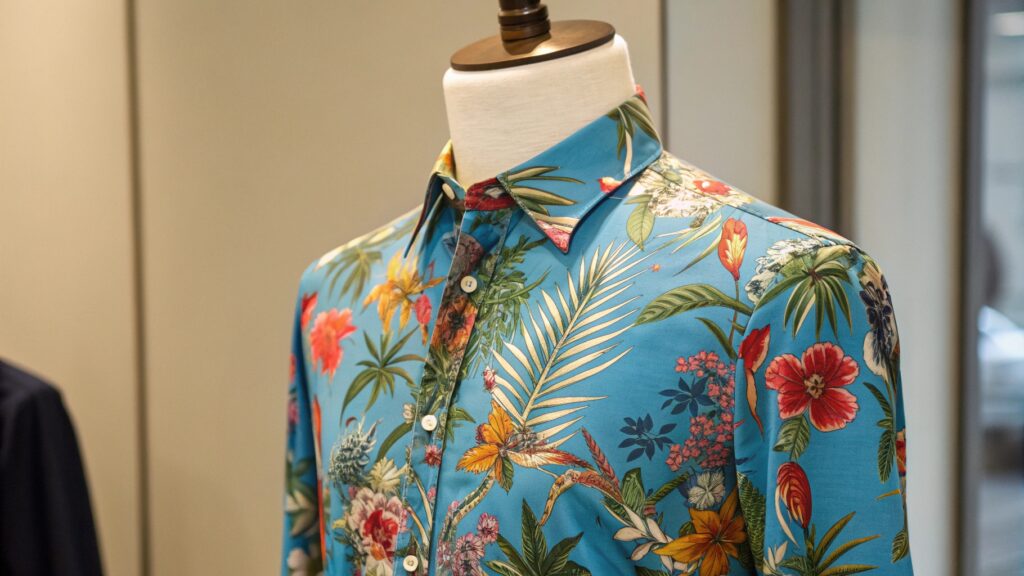
This part is technical, but it is the key to a professional-looking shirt. You cannot just use a low-resolution image you downloaded from the internet. When you scale a small file up for a T-shirt, it will become blurry and look cheap—we call this pixelation. For logos, you must use vector files (like Adobe Illustrator's .AI, .SVG, or .EPS). These files are based on mathematical points, not pixels, so you can stretch them to any size without any loss in quality. For detailed artwork or photographs, you need a high-resolution file, meaning at least 300 DPI (dots per inch), exported as a flattened file like a PNG or TIFF. I always advise people to also specify the colors using a clear system, like Pantone (PMS) numbers for spot colors used in screen printing1. This ensures that the blue on the shirt matches the blue in your brand guidelines. Miscommunication between a designer and the printer is the most common mistake. This is why I insist on a master file (AI or PSD) plus exported production files for the printer. The master file lets the printer adjust the size or color separations without messing up the artwork, which preserves the integrity of your logo's design, and this is crucial for consistency across different shirt sizes.
Essential Print File Checklist
| Requirement | File Type | Why It is Essential for Quality |
|---|---|---|
| Logos/Text | Vector (.AI, .EPS, .SVG) | Scales to any size without losing sharpness. |
| Complex Art | High-Res Raster (.PNG, .TIFF) | Keeps details sharp, especially for DTG printing. |
| Color Fidelity | Pantone (PMS) or HEX Codes | Guarantees the colors match your brand standard. |
| Source File | Layered (.AI or .PSD) | Allows the printer to make necessary production adjustments. |
The simple rule is that a professional printer should be able to tell you exactly what files they need, and you should be able to provide them.
How Long Does T-shirt Printing Usually Take, and How Can I Avoid Delays?
Need your shirts by a deadline? Problem: Unexpected delays can ruin your event or product launch. Agitation: Rushed jobs often mean poor quality. Solution: Understand the production timeline and plan your process backward.
T-shirt printing typically takes between 7 to 14 business days after the final artwork and deposit are approved, though this varies greatly with the printing method, complexity, and order quantity, and you can best avoid delays by providing print-ready files immediately and approving the digital proofs quickly.
I have seen many campaigns fail because of poor timeline planning. Ten years of experience taught me that the clock starts ticking only after everything is finalized. That means the fabric color is chosen, the logo is approved, the print file is correct, and the deposit is paid. A simple order of 100 shirts using DTG might take less time, maybe a week, because the setup is faster. A complex order of 500 shirts with multiple colors using screen printing will take longer because of the time needed to create the screens for each color. For a marketing manager like Jacky, who needs to manage tight project timelines, the best thing to do is to plan backward from the event date. You should always build in a buffer of at least five extra days for unexpected delays, such as a proof revision or a machine malfunction. The single biggest thing that slows down a job is the proofing process2. The printer sends you a digital image of what the final shirt will look like. You must check this proof for logo size, placement, and color instantly. Do not wait a day. Quick proof approval is your best way to guarantee a smooth, on-time delivery. Never ask a printer to rush a job, because the one thing that gets sacrificed is usually the curing time, and that is what makes the print last.
Typical T-shirt Production Timeline
| Stage of Production | Estimated Time | Key Action to Speed Up |
|---|---|---|
| Sourcing/Quoting | 1-3 Business Days | Have all specs (quantity, design, color) ready. |
| Artwork Proofing | 1-2 Business Days | Approve the digital proof immediately. |
| Production/Printing | 5-10 Business Days | Choose a simpler print method (DTG) for speed. |
| Quality Check/Shipping | 1-3 Business Days | Arrange for local pickup if possible. |
The main takeaway here is that speed is an outcome of being organized, not an outcome of rushing the printer.
How to Design Your Own Logo in Photoshop and Still Get a Great Print?
Want to design your own logo without a professional? Problem: Photoshop is pixel-based and often leads to poor print scaling. Agitation: This forces you to use a low-quality DTG print method. Solution: Design the logo simply and export it at a high resolution.
While professional logos are best made in vector programs, you can design a simple logo in Photoshop by working at a very large canvas size (e.g., 5000 pixels wide) at 300 DPI, which gives you a large, high-resolution file that prevents pixelation when scaled down for printing, though this limits your print method options to high-quality raster printing like DTG.
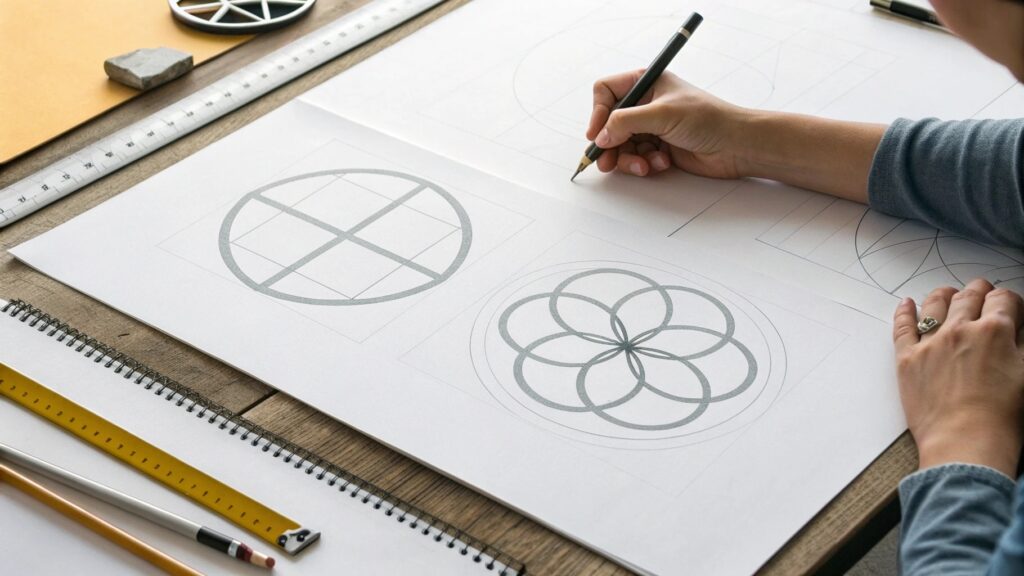
I know that sometimes you want to design your own logo. If you use Photoshop (which is a raster program based on pixels), you need to be very smart about it because it is not the ideal tool for logos. The absolute first step is to set your canvas size huge. Start with at least 5000 pixels by 5000 pixels at a resolution of 300 DPI. This creates an enormous image file. The reason you do this is that you can safely reduce the size later without losing quality. You can never safely increase the size of a raster image. The second important step is to keep the design simple. Do not use fine lines or complex text because they will always look fuzzy when printed. Use bold shapes and clear, thick lines. Finally, when you are finished, you must save the final file as a high-resolution PNG with a transparent background3. This PNG file will be the production file you send to your printer. Be aware that designing a logo in Photoshop means you are generally locked into printing methods that handle raster images well, like DTG or dye-sublimation. You will not be able to get the crisp, clean edge that a screen-printed vector logo provides. For a small business launching a single event shirt, this can work. For a long-term brand identity, I still strongly recommend you invest in a professional vector logo that future-proofs your brand.
Best Practices for Designing a Print-Ready Logo in Photoshop
| Rule | Action to Take | Why It is Important |
|---|---|---|
| Size | Set Canvas at 5000+ pixels at 300 DPI. | Prevents pixelation when the logo is resized. |
| Export | Save as a PNG file with a transparent background. | Allows the logo to be placed on any color shirt cleanly. |
| Complexity | Use bold lines and shapes only. | Fine details look fuzzy in raster prints. |
| Color | Use only solid colors; avoid gradients. | Gradients can sometimes print poorly and look banded. |
Using Photoshop for a logo is a compromise, and you must know the technical limits before you start printing.
Conclusion
Finding the right logo requires a purpose-driven choice of source and a commitment to print-ready vector files. Plan your timeline with a buffer and always approve the digital proof quickly for a successful, high-quality final product.